


10 Ways to Boost Your Laptop’s Battery Life
Introduction
Laptops are essential for work, study, and entertainment, but a draining battery can quickly disrupt your productivity. Whether you are working remotely, attending online classes, or traveling, knowing how to boost your laptop’s battery life can save time and frustration.
In this guide, we’ll explore 10 practical tips to get the most out of your laptop battery, covering settings adjustments, hardware awareness, and daily usage habits.
1. Adjust Screen Brightness
The display is one of the most power-hungry components of your laptop. Reducing screen brightness can significantly save battery life. Most laptops allow quick brightness adjustments via keyboard shortcuts or system settings. Using adaptive brightness, if available, automatically optimizes brightness according to ambient light.
2. Enable Battery Saver Mode
Most modern laptops come with a battery saver or power-saving mode. This mode reduces background processes, lowers system performance slightly, and dims the display to extend battery life. Activate battery saver when running on low charge or during extended use away from a power source.
3. Close Unnecessary Programs and Tabs
Background programs and open browser tabs can drain battery power. Close apps you’re not using and limit browser tabs to essential ones. On Windows, Task Manager helps identify resource-hogging programs, while macOS users can check Activity Monitor to optimize performance.
4. Disable Unnecessary Connectivity Features
Wi-Fi, Bluetooth, and other connectivity features constantly search for networks or devices, consuming power. Turn off Wi-Fi or Bluetooth when not in use. Similarly, disabling location services and automatic syncing can reduce battery drain.
5. Manage Startup Programs
Many programs start automatically when you boot your laptop. These can slow down performance and consume battery. Disable unnecessary startup programs in system settings. On Windows, go to Task Manager → Startup tab; on macOS, check System Preferences → Users & Groups → Login Items.
6. Update Your Operating System and Drivers
Outdated software or drivers may cause inefficient power management. Regularly updating your OS and hardware drivers ensures your laptop runs optimally. This can improve battery efficiency and fix known bugs that lead to excess power consumption.
7. Optimize Power Settings
Most laptops allow custom power plans. On Windows, navigate to Control Panel → Power Options to choose balanced or power saver plans. On macOS, go to System Preferences → Energy Saver. Configuring sleep settings and turning off hard drives when idle further conserves battery.
8. Disconnect External Devices
USB drives, external hard drives, and peripheral devices draw power from your laptop. Disconnect devices when not in use. Similarly, avoid charging other gadgets from your laptop if battery life is a priority.
9. Keep Your Laptop Cool
Heat affects battery efficiency and longevity. Use your laptop on hard surfaces to allow airflow, avoid blocking vents, and consider a cooling pad if needed. Reducing excessive heat helps your battery maintain performance longer.
10. Consider Hardware and Battery Health
Over time, batteries degrade naturally. Monitoring battery health using built-in system tools or third-party software helps identify when replacement is necessary. Additionally, avoid leaving your laptop plugged in constantly at 100% charge, as this can shorten battery lifespan. Charge between 20%-80% for optimal health.
Bonus Tips
- Use Dark Mode: Reduces screen power consumption, especially on OLED displays.
- Limit Gaming or Intensive Apps: High-performance applications drain battery faster. Use them while plugged in.
- Regularly Restart Your Laptop: Helps clear memory and reduce unnecessary background activity.
Conclusion
Knowing how to boost your laptop’s battery life is essential for productivity and convenience. By adjusting screen brightness, managing software and connectivity, optimizing settings, and maintaining battery health, you can extend usage and reduce dependency on constant charging.
Implement these 10 tips to get more reliable battery performance and enjoy longer laptop usage whether you’re working, studying, or gaming.



Related Posts

Medicare, Medicaid, and Beyond: Your Guide to Public Health Insurance in the USA
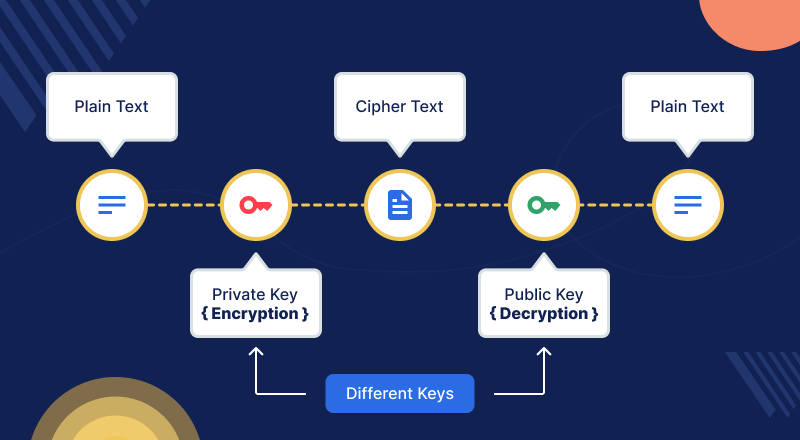
Cryptography: Developing Systems to Secure Data and Communications
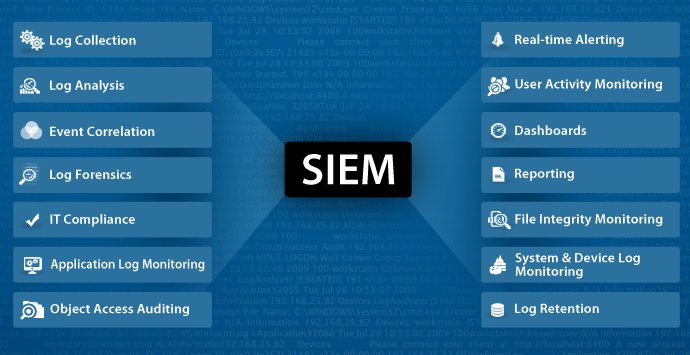
Security Information and Event Management (SIEM): Monitor and Analyze Security Logs Effectively

BOE’s Struggle with iPhone OLED Production: Impact on Apple and the Display Industry

Penetration Testing: Identifying Website and Network Vulnerabilities
Weather App Development: Building a Real-Time Weather Application Using OpenWeatherMap API
Smart Energy Management System: Optimize Energy Consumption Using IoT, Sensors, and Actuators

Wearable Device Development: Track Fitness, Health, and Environmental Data with Arduino or Raspberry Pi

Predictive Modeling Using Machine Learning: A Complete Guide for Businesses

Predictive Modeling: Using Machine Learning to Predict Customer Churn, Sales, and Business Outcomes

Data Visualization Dashboard Development: Visualizing Insights Using Tableau, Power BI, and D3.js
Social Media Platform Development Using React, Node.js, and MongoDB
Blog Website Development: Using WordPress CMS or Building a Custom Blog with HTML, CSS, and JavaScript

Predictive Maintenance: Building a Machine Learning Model to Predict Equipment Failures and Reduce Downtime
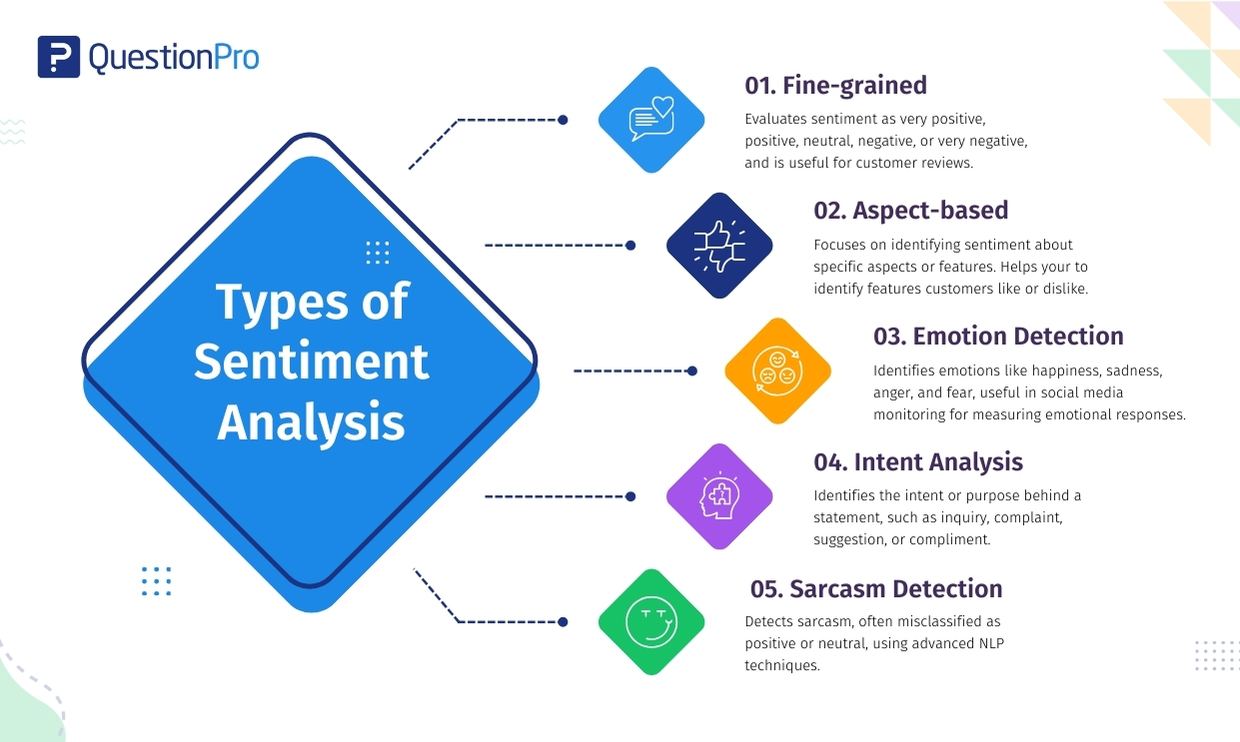
Sentiment Analysis: Building a Model to Analyze Text Data and Determine Sentiment

Image Classification: Develop a Deep Learning Model to Categorize Images

Chatbot Development: Build a Conversational AI Chatbot Using NLP and Machine Learning

Tech Industry Trends: Job market, skills in demand, and future prospects

Nanotechnology: Applications, Benefits, and Potential Risks
Change Management: Implementing Digital Transformation, Training, and Adoption

VR and AR Applications: Gaming, Education, and Enterprise Use Cases
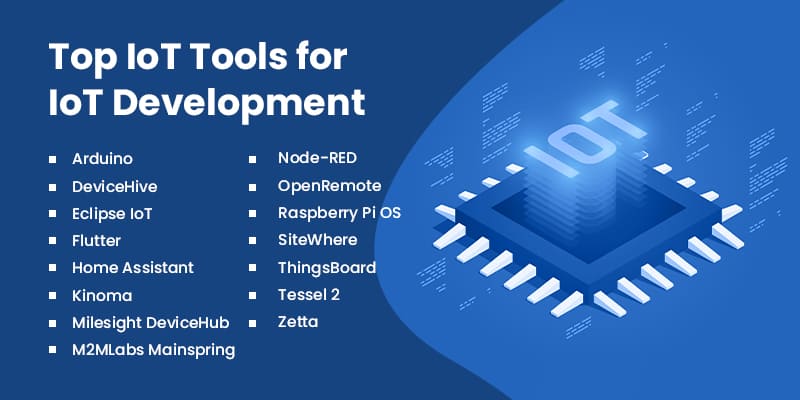
IoT Development: Platforms, Tools, and Programming Languages

Cloud Security: Data Protection, Access Control, and Compliance

Cloud Migration: Strategies, Benefits, Challenges, and Best Practices

French Court Ruling on Apple’s Tracking: App Tracking Transparency Stands

Robotics Breakthrough: Handy Robot That Can Crawl and Pick Up Objects

Apple, Google Announce Multi-Year AI Collaboration Using Gemini: A New Era for AI Assistants

PTA Tax Reduction: What It Means for Mobile Users in Pakistan

Gul Plaza Fire: How a Deadly Inferno Exposed Karachi’s Safety Failures

Verizon Outage Update Critical Service Restored After 10-Hour



The Importance of Data Analytics in Business Decision-Making

The Future of Autonomous Vehicles

75 Countries Visa Pause: What It Means for Global Travel and Immigration

School Closing in USA What Parents Should Know
School Closing in USA, What Parents Should Know


The Best Smartphones for Photography in 2026: Capture Every Moment in Stunning Detail

WordPress Not Loading: Reasons and How to Fix It

How to Fix Slow Loading Issues in Google Chrome

No-Code Business Ideas That Make Millions in 2026

How to Become a Tech Entrepreneur in 2026

How to Create a Successful YouTube Channel in 2026

Best Free Video Editing Software for YouTubers in 2026

How to Make Money Online in Pakistan: Proven Ways to Earn in 2026

Top 5 Laptops for Gaming in 2026: Ultimate Picks for Every Gamer


Review of the Latest Smartwatch Trends: What’s Hot in Wearable Tech

Samsung vs iPhone Cameras: Which Is Better for Photography in 2026?
How AI is Changing the Way We Live and Work: Transforming Everyday Life

How to Build a Gaming PC: A Step-by-Step Beginner’s Guide
The Best Password Manager: Secure Your Digital Life in 2026
The Future of Drones in Pakistan: Transforming Industries and Innovation

How to Speed Up Your Laptop: Simple Tips That Actually Work

The Ethics of Facial Recognition Tech: Balancing Innovation and Privacy
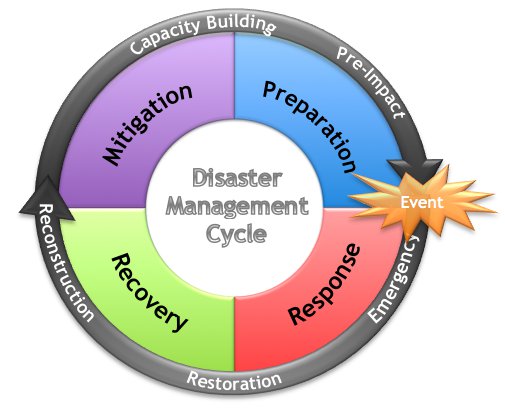
The Role of Tech in Disaster Management: Saving Lives Through Innovation

The Future of 3D Printing: Transforming Manufacturing and Beyond

The Best Free Antivirus Software: Protect Your Devices Without Paying

How to Protect Your Phone from Hackers: Essential Security Tips

The Top Tech Conferences in Asia: Where Innovation Meets Opportunity

The Pros and Cons of Online Shopping: A Complete Guide for Modern Consumers

The Future of Virtual Assistants: Smarter, More Human, and Everywhere

Top Tech Myths Debunked: Separating Fact from Fiction

How AI is Changing Customer Service: Enhancing Support and Experience

Pakistan Top Tech Influencers to Follow: Insights, Reviews & Innovation
Best Remote Development Collaboration Tools Software 2026

The Rise of E-Sports in Pakistan: Gaming as a Professional Career

The Impact of Technology on Pakistan Education System : Transforming Learning and Teaching

The Top Tech Companies to Work for in Pakistan: Careers, Culture, and Opportunities
How to Protect Your Data Online: Tips for Cybersecurity and Privacy

The Role of Women in Pakistan Tech Industry: Breaking Barriers and Driving Innovation

The Dark Side of Social Media: Addiction & More
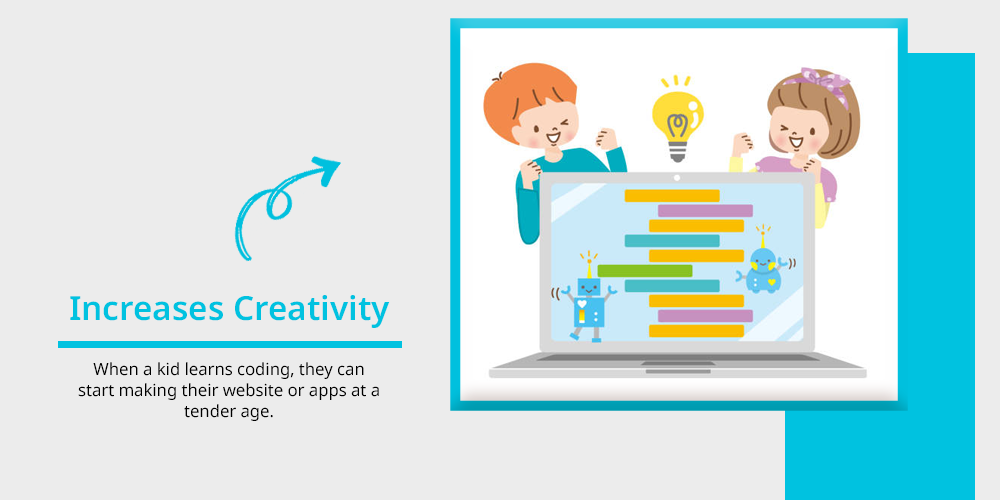
Coding for Kids: Is it Worth the Hype?

The Impact of IoT on Daily Life: Transforming How We Live, Work, and Interact

Top Tech Conferences in Pakistan: Networking, Innovation, and Growth Opportunities

The Future of Electric Vehicles in Pakistan: Opportunities, Challenges, and Growth

The Best Productivity Apps for Students: Maximize Learning and Time Management

Pakistan’s Digital Payment Revolution: Transforming Commerce and Financial Inclusion


The Impact of Technology on Pakistan’s Economy
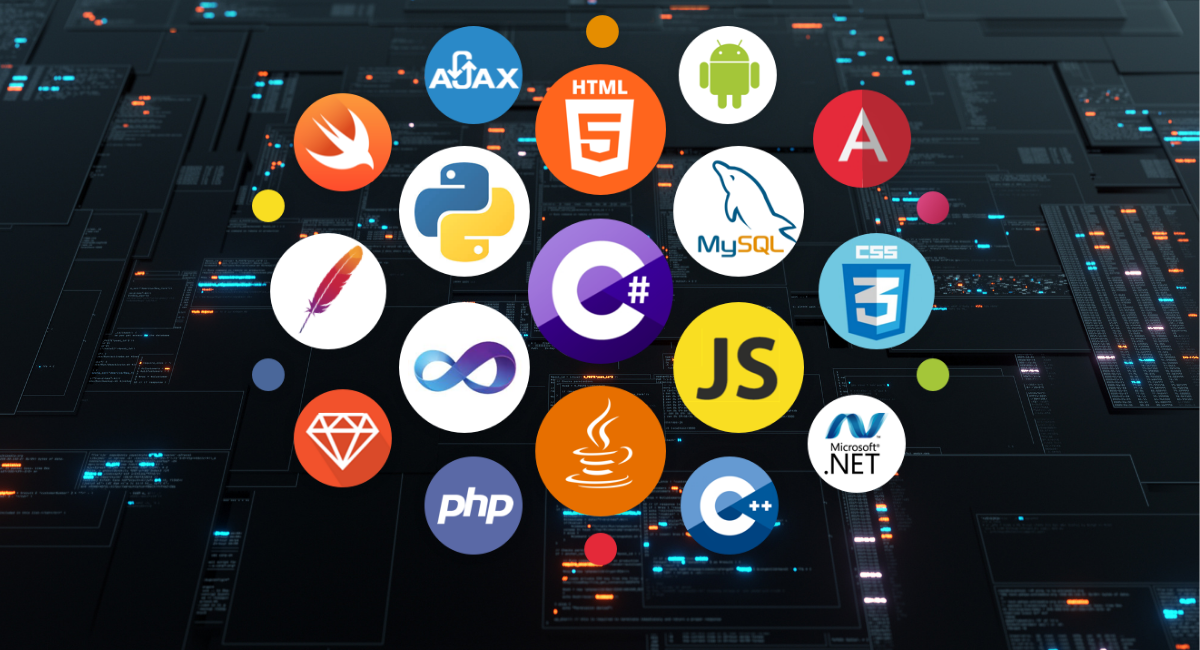
Top Programming Languages to Learn

The Rise of E-Learning Platforms: Revolutionizing Education

Human-AI Collaboration Tools: AI as a True Teammate Enhancing Productivity and Creativity
Low-Code, No-Code, and AI-Assisted Dev: Democratizing Software Development with AI-Powered Tools

Generative AI 2.0: Multimodal AI systems that combine text, visuals, code, and data, unlocking new enterprise applications

AI Governance and Regulation: Ensuring AI Transparency, Fairness, and Accountability

Humanoid Robots: AGIBOT’s Production-Ready Robots Are Changing Industries
AI in Everyday Life: How AI Is Transforming Daily Tasks and Experiences

AI in Healthcare: How Machine Learning Is Revolutionizing Patient Care

Gaming on the Go: The Evolution of Mobile Gaming

The Ethics of Technology: Balancing innovation with responsibility

Virtual Reality: Transforming the Way We Experience the Digital World
Demystifying Quantum Computing: What You Need to Know

The Role of Internet of Things in smart cities (IoT) in Shaping the Future of Cities
The Top Emerging Tech Trends in Pakistan

The Benefits and Drawbacks of Virtual Reality in Education

How Blockchain is Revolutionizing Industries Beyond Crypto currency

The Pros and Cons of Facial Recognition Technology

The Rise of Smart Homes: How Technology Is Changing the Way We Live

Cybersecurity in the Age of Remote Work: Challenges and Solutions


The Future of Artificial Intelligence: Trends to Watch
The Benefits of Microservices Architecture for Modern Applications

The Role of Artificial Intelligence in Predictive Maintenance

How Businesses Can Leverage Social Media Analytics for Growth

The Impact of Quantum Computing on Cybersecurity: A New Era of Threats

The Benefits of Serverless Computing 2026, The Architecture for Modern Applications

Why Businesses Should Prioritize Digital Transformation in 2026

The Potential of Augmented Reality in Education and Training
The Role of DevOps in Modern Software Development: Benefits and Challenges

Cloud Computing for Small Businesses: Benefits and Best Practices

The Future of Work: How Automation and AI Are Transforming the Job Market

Blockchain in Supply Chain Management: A Game-Changer for Transparency and Efficiency

Data Analytics: Unlocking Business Insights and Driving Growth

5G for Businesses: Leveraging Next-Gen Connectivity for Growth

Cybersecurity in the Age of IoT: Threats and Opportunities

The Future of E-commerce: How AI is Revolutionizing Online Shopping

Birdbuddy Smart Bird Feeder Launches at CES 2026: Birdbuddy 2 and Birdbuddy 2 Mini

Descriptive Set Theory and Computer Science: A New Bridge Links the Strange Math of Infinity to Algorithms

Most Anticipated Video Games 2026 That Gamers Can’t Wait For

Voicebuds: Subtle Launches Next Generation Earbuds for Voice Computing

Robots: Transforming the Future of Technology and Daily Life

Graphic Designing: The Art and Science of Visual Communication

Xthings Smart Home Devices at CES 2026 Redefine Home Security and Automation

SwitchBot Onero H1 Home Robot Redefines Smart Living at CES 2026

Beats Solo 4 Headphones Deal: Amazon Slashes $70 Off in All Colors

Digital Marketing Services for Small Businesses: Simply Social Media LLC Expands to Drive Growth
Why Japan’s Internet Feels Unusual to Outsiders — But Makes Sense to Locals


ASUS Unveils ROG Strix XG34WCDMS Featuring a 34-Inch 280Hz 5th-Gen QD-OLED Display

The Top Agentic AI Browsers to Watch in 2026